
Artwork Guide
For best results, please supply your artwork as a press-quality PDF.
- Format: PDF saved using Press Quality, PDF/X-1a or For Printing settings
- Layout: Individual pages in normal reading order
- Safe margin: Keep important text and logos at least 4mm from the edge
- Bleed: Add 3mm bleed for edge-to-edge colour printing
- Crop marks: Include crop marks where possible
Don’t worry if you’re unsure — we check every file before printing and will contact you if something looks wrong.
Choose the tab below that best matches how your file was created or what you’re supplying.
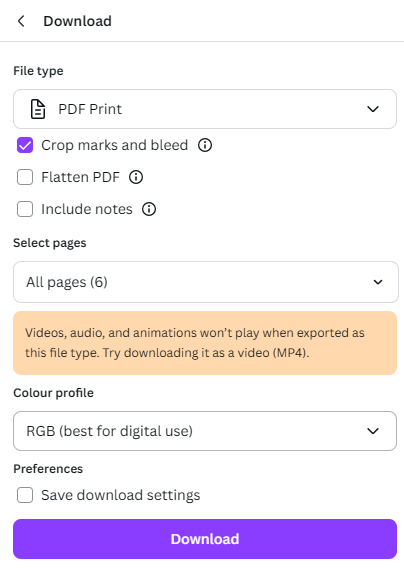
If you have created your design in Canva, please download it as a PDF for print.
Select Share, then Download. Under file type, choose PDF Print and tick Crop marks and bleed.
CMYK colour is best where available, but RGB is fine if you are using the free version of Canva.
For InDesign, Illustrator or Photoshop, please export your file as a press-quality PDF where possible.
Use PDF/X-1a, Press Quality or similar print-ready settings. Add 3mm bleed on all sides for edge-to-edge colour printing, and include crop marks where possible.
Please make sure fonts are embedded or outlined, and images are high resolution.
Using Photoshop?
Photoshop is not ideal for creating print layouts, especially if your design includes lots of text, but it can be used for simple image-based artwork.
Go to Image > Canvas Size and set the units to millimetres.
Your canvas should be 6mm larger in both width and height than the finished print size. This allows for 3mm bleed on each edge. For example, an A5 design should be set up as 154 × 216mm, including bleed.
If your canvas is currently set to the finished size, tick Relative and enter 6mm in both the Width and Height boxes. Click OK, and your document will extend by 3mm on each edge.
Adjust your design if needed, usually by extending the background image or colour into the new bleed area.
When finished, print or save the file as a PDF. In the print settings, tick corner crop marks, set the bleed width to 3mm, and make sure the scale is 100%. It is fine if the final PDF page size is larger than the finished print size.
We can print from Word, PowerPoint and Excel files, but layouts, fonts and page sizes can sometimes change between computers.
For the safest result, please save or export your file as a PDF before sending it to us. Check the PDF carefully before sending, especially page breaks, spacing, images, fonts and the finished page size.
PowerPoint often defaults to a screen or widescreen slide size, which may not match A4, A5 or your required print size. If you are creating artwork for print, please check the slide size before exporting.
We can also print PowerPoint presentations as handouts, with multiple slides per page, stapled or bound for conferences, seminars, training sessions and meetings.
If your slides include a date, footer or page number, please check whether you want this printed on every page before sending the file.
For Excel files, please check the print settings before creating the PDF. You may need to set the print area, choose portrait or landscape, and use options such as “fit all columns on one page” so the spreadsheet prints clearly. Please check the PDF before sending, as very wide spreadsheets can become too small to read if too much is fitted onto one page.
If you need to send the original Office file instead of a PDF, please use standard system fonts where possible, such as Arial, Calibri or Times New Roman. This helps reduce the chance of fonts changing when we open the file.
AI tools can be useful for creating leaflets, posters, invitations, menus and other printed artwork, but the final file still needs to be checked carefully before printing.
AI can sometimes create artwork at the wrong size, miss bleed or safe margins, use low-resolution images, or make spelling mistakes. Before sending AI artwork to print, please check the size, bleed, margins, text, contact details and image quality.
For best results, use AI to create the design, then check or finish the artwork in Canva, Adobe, PowerPoint or another design program before exporting it as a press-quality PDF.
Example AI Prompt for Print Artwork
Copy and paste this prompt into your AI design tool, then fill in the details:
Create a professional print-ready design.
Print settings:
Finished size: [A6 / A5 / A4 / custom size]
Bleed: 3mm on all sides
Safe margin: Keep text, logos, QR codes and important details at least 4mm from the trimmed edge
Resolution: High-resolution images, ideally 300 DPI
Crop marks: Include crop marks if exporting as a PDF
Layout: Do not add borders close to the edge
Design details:
Business name:
Logo:
Design type: [leaflet / poster / invitation / menu / flyer / certificate / other]
Style: [modern / simple / luxury / corporate / bold / colourful / minimal]
Headline:
Main text:
Contact details:
Images to include:
Call to action:
Please create a clear, balanced and easy-to-read layout suitable for professional printing. When finished, export the final file as a high-quality, press-ready PDF.
Please note: we check files for print suitability, but we do not automatically proofread or correct AI-generated text.
Please save your file as individual pages in normal reading order.
For an 8-page booklet, page 1 should be the front outside cover, page 2 should be the front inside cover, and page 8 should be the back outside cover.
Please do not arrange booklet pages into printer spreads. We will impose the pages correctly for print.
For multiple small items, such as 20 A6 table names, please send either a 20-page PDF or 20 individual files.
Please do not place smaller items onto an A4 sheet yourself. Send each item at its finished size and we will arrange it correctly for printing.
Please also avoid adding fold lines or cutting lines into your design, as these are not normally needed and may show on the finished print.
Please send booklet files as individual pages in normal reading order, starting with the front cover as page 1.
Do not arrange the pages into printer spreads or put multiple pages together on one sheet. For example, an 8-page booklet should be supplied as page 1, page 2, page 3, page 4 and so on. We will arrange the pages correctly for printing.
Booklet page counts usually need to be divisible by 4, because each folded sheet creates 4 printed pages. Common booklet sizes are 8, 12, 16, 20 and 24 pages.
If your booklet does not divide by 4, blank pages may need to be added. These are often placed inside the front or back cover, depending on the design.
Please keep text, page numbers and important details away from the trimmed edges and the centre fold. This is especially important for small text, logos and photos that run close to the edge.
If you are unsure whether your file is set up correctly, send it to us and we’ll let you know if anything obvious needs adjusting before print.
Large artwork files can be sent using our WeTransfer upload page. This is useful for print-ready PDFs, high-resolution images, large booklet files, posters, plans or multiple files that are too large to email.
When sending your files, please include your name, company name if relevant, order number if you have one, and clear instructions for what you need printed.
Helpful details include the finished size, quantity, paper type, single or double-sided printing, colour or black and white, finishing requirements and your deadline.
If you are sending more than one file, please label them clearly so we know what each file is for. For example, “A5 leaflet front”, “A5 leaflet back”, “poster A1” or “booklet pages”.
If your order is urgent, please email us as well after uploading so we know to look out for your file. Uploading a file on its own does not automatically place an order unless you have already ordered online or confirmed the job with us.
Artwork FAQs
Do you check my artwork before printing?
Yes, we check files for print suitability, including obvious issues with size, bleed, margins and setup. This does not include proofreading, spell-checking or detailed artwork correction.
What happens if my artwork is not set up correctly?
If we notice an issue, we’ll contact you before printing. Simple issues may be quick to resolve, but artwork changes, redesigns or file corrections may need to be quoted separately.
Can you fix my artwork for me?
Sometimes, yes. Small adjustments may be possible, but more involved artwork changes are charged separately. Please email us with your file if you are unsure.
Do you proofread artwork before printing?
No, we do not automatically proofread files. Please check all spelling, dates, names, phone numbers, prices and contact details carefully before sending your artwork.
Can I send files after placing an order?
Yes. For many online orders, you can upload your artwork after checkout. If your file is too large, you can send it using our WeTransfer upload page.
Can I send JPEG or TIFF files instead of PDF?
For most jobs, PDF is best. For large posters, photographs or artwork images, high-resolution JPEG or TIFF files are usually fine.
Ready to order?
Choose the option below that best matches what you need.
Place your order online
Choose your print product, complete checkout and upload your artwork when prompted.
Browse printing products |
Send a large file
Use our WeTransfer page for large PDFs, high-resolution images, booklets, posters, plans or multiple files.
Upload via WeTransfer |
Not sure about your artwork?
Send us your requirements and attach your file where possible. We will review the details and provide a quotation or practical advice.
Request a quotation |
Uploading a file does not place an order unless you have already ordered online or confirmed the job with us.